Troubleshooting
Roblox Studio Plugin
”HTTP Not Enabled”
You must save & publish your game first before you can access this setting. Then go to Experience Settings (Game Settings) → Security → Allow HTTP Requests and enable it. This is required for the Studio plugin to communicate with the FigBloxUI server.
Creator Store shows 404
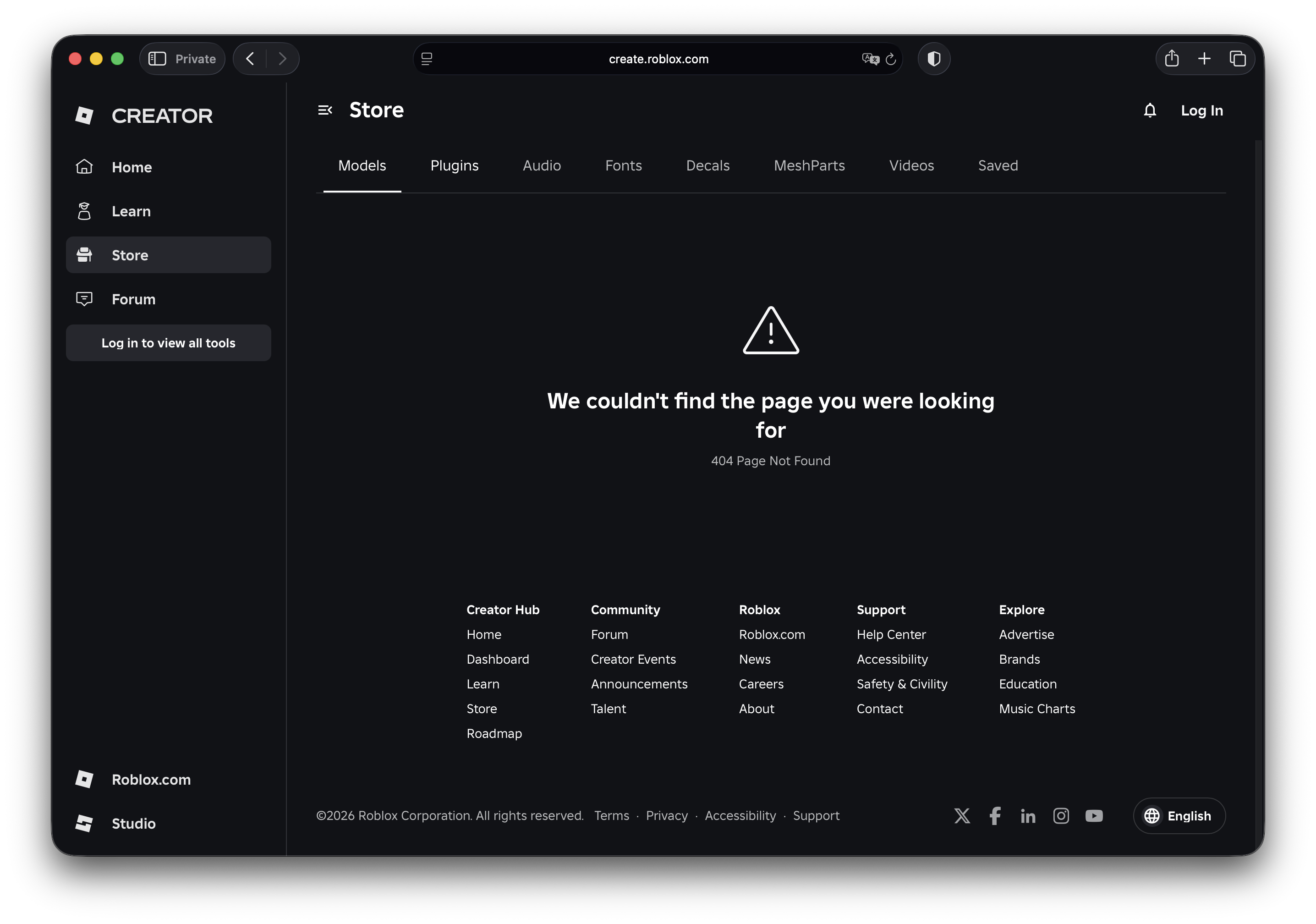
If you see a 404 page when opening the Roblox Studio plugin link, this is temporary. The developer has published a new version and it’s currently under Roblox review. Please wait and check back later — it usually takes around 30 minutes, but may vary depending on Roblox’s review queue.
Plugin doesn’t appear in toolbar
- Check that the plugin is installed (View → Plugin Manager)
- Try restarting Roblox Studio
- Check the Output window for any errors
Import doesn’t appear
- Make sure the Studio plugin shows “Connected” (green dot)
- Check that you’re logged into the same Roblox account in both Figma plugin and Studio
- Try sending again from the Figma plugin
Figma Plugin
”Select a frame first”
You need to select a frame in Figma before clicking Send. FigBloxUI needs a root frame to export.
Images not uploading
- Make sure you’ve connected your Roblox account via OAuth
- Check that the Roblox OAuth has
asset:writepermission - Large images may take longer to upload — check the progress bar
Trial expired
After 14 days, you’ll need a paid subscription. You can pay with a credit card (click “Subscribe” in the plugin) or with Robux via the FigBloxUI Store on Roblox.
Connection Issues
Plugin shows “Offline mode”
The FigBloxUI server may be temporarily unavailable. The plugin will retry automatically.
Slow imports
Image upload speed depends on:
- Number and size of images
- Roblox API response time
- Your internet connection
Tip: Use the Image Preview to skip unnecessary images and deduplicate shared assets.