Image Moderation & Appeals
Important: this is a Roblox-side issue, not a FigBloxUI bug. Roblox’s AI moderation reviews every image uploaded to the platform, whether FigBloxUI uploads it for you (Live / Code mode, to your account or a Group) or you upload it manually through Asset Manager (ZIP mode). The same texture would be flagged either way. Switching upload methods will not change the outcome. Both paths feed the same AI review.
Don’t panic if your image gets rejected: it happens to everyone, and you can appeal. Roblox uses an AI / machine-learning moderation system, and like any AI, it makes mistakes. Innocent textures, abstract patterns, and decorative graphics can get false-flagged even when there’s nothing wrong with them.
Roblox publicly describes their moderation pipeline in How Roblox Uses AI to Moderate Content on a Massive Scale and Content Moderation on Roblox.
What the plugin does while Roblox reviews
FigBloxUI waits for Roblox’s moderation result before a Send finishes, and tells you when an image is still under review, so you find out in the plugin instead of in Studio. An image that is still in review has an asset ID but renders blank until Roblox clears it, usually within a few minutes.
One Send or export can carry up to 1,000 different images, and copies of the same image count once. If a design needs more, the plugin says so before anything uploads. Send one screen or panel at a time when you go over.
Common reasons images get rejected
- Faces, real people, or photographs
- Text content (logos, watermarks, slogans)
- Copyrighted artwork or characters
- Textures and patterns: wood, fabric, metal, gradients, or repeating surface textures the AI may misread
- Anything Roblox flags as inappropriate
Tips to reduce false flags during development
- Test with a small set of images first before exporting a full design
- Avoid uploading the same flagged image again; Roblox may treat re-uploads as repeat violations
- The first time you send to a different Image owner (Personal or a Group), FigBloxUI uploads new copies of your images for that owner, and each copy goes through moderation again. Pick the owner before your first full export
- If a send stops partway (for example your Roblox login expired), fix that and send again. Images Roblox already accepted are reused instead of being uploaded a second time
- Keep textures simple and abstract; avoid anything that could be misread as a face or body part by an AI
- If a texture keeps getting flagged, try variants (different scale, contrast, color). Small changes can pass moderation
- The Roblox moderator queue is shared across all users. Don’t take rejections personally
How to appeal
Roblox lets you contest any moderation decision within 30 days of the action. See the official guide: Appeal Your Content or Account Moderation.
Go to Roblox Report Appeals and fill in the form. A clear, factual appeal with the asset ID, a description of the image, and why you believe it’s a false positive usually gets reviewed within hours. Click the copy button on the template below, paste it into the appeal form, then fill in the bracketed fields.
Hello Roblox Moderation Team,
I'm appealing the moderation action triggered by Asset ID [YOUR_ASSET_ID] ([Asset_Name]).
Context:[Briefly describe how the asset was uploaded, e.g. "This asset was uploaded to my account while I was working on a UI design."]
I believe this is a false positive:- [Reason 1, e.g. "The image is a low-contrast, repeating surface texture"]- [Reason 2, e.g. "It is a generic stock texture used for a UI background, not original artwork"]- [Reason 3, e.g. "The upload was part of a one-time test, not a published game or pattern of abuse"]- [Reason 4, e.g. "This is the only asset on my account that has ever been flagged"]
I have already removed the asset from my project. Could you please re-review this case?
Thank you for your time.
Real example

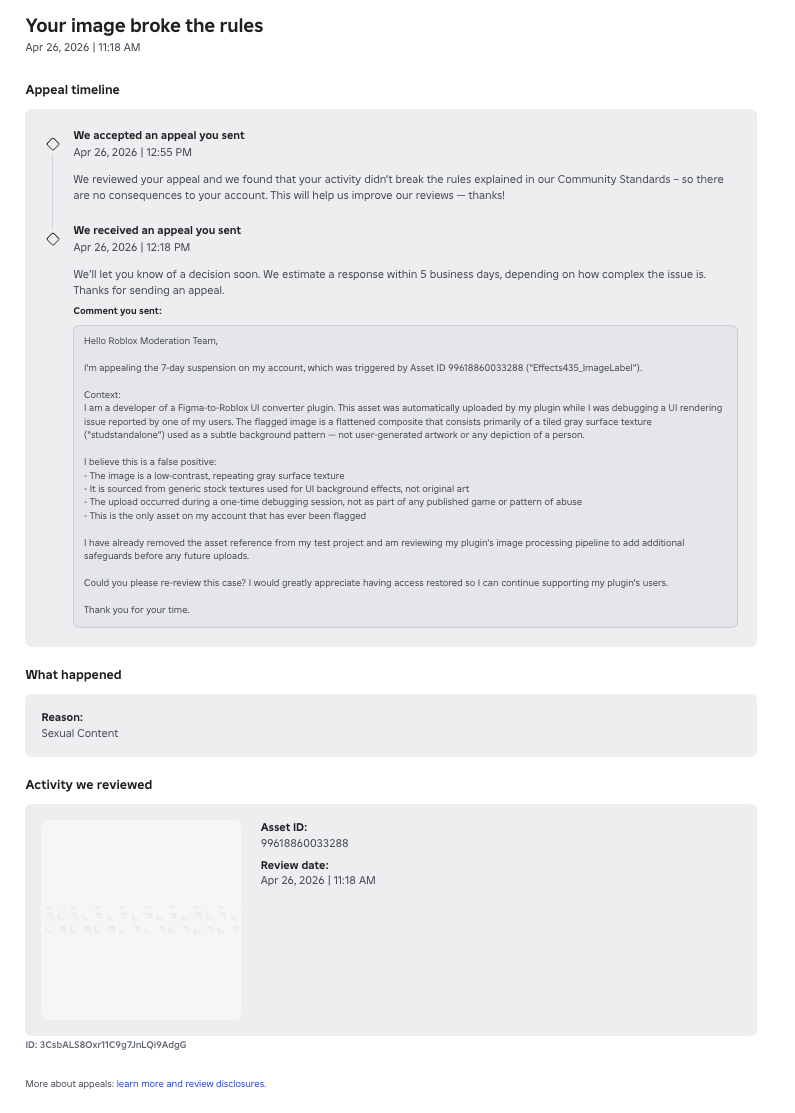
A FigBloxUI user uploaded a flattened composite that contained the tiled gray surface texture above (a “stud” pattern used as a subtle background), Asset ID 99618860033288, named Effects435_ImageLabel. Roblox’s AI flagged it as Sexual Content and applied a 7-day account suspension. The user appealed using the template above with the four reasons listed (low-contrast repeating texture, generic stock pattern, one-time test upload, no other flags on the account). Roblox accepted the appeal within 37 minutes with the response: “We reviewed your appeal and we found that your activity didn’t break the rules explained in our Community Standards, so there are no consequences to your account.”
The screenshot below is the actual appeal page: the timeline (received 12:18 PM, accepted 12:55 PM), the appeal text the user submitted, and Roblox’s response are all real:
If your appeal is denied
- You can submit a second appeal. Include any additional context that wasn’t in the first one (a more detailed description, the original Figma source, links to similar approved assets, etc.)
- Verified Roblox developers can also reach out via Developer Relations on the Roblox Devforum for more visibility
- As a last resort, replace the texture with a slightly modified version (different colors, less repetition, lower contrast). Small changes are often enough to pass the AI